Framer CMS Basics — How to Manage Content Collections
The CMS in Framer lets you manage repeatable content like blog posts, FAQs, or projects without rebuilding your layout each time. In this tutorial, you’ll learn how CMS collections work, how to edit content, and how to display it on your pages efficiently.

8
min read














The CMS in Framer lets you manage repeatable content like blog posts, FAQs, or projects without rebuilding your layout each time. In this tutorial, you’ll learn how CMS collections work, how to edit content, and how to display it on your pages efficiently.
CMS stands for Content Management System. It's used for managing lists of content, such as blog posts, FAQs, services, projects, or testimonials.
Instead of creating a new element for every item, you define the structure once and then manage the content directly inside the CMS.
CMS collections
In Framer, CMS content is organized into collections.
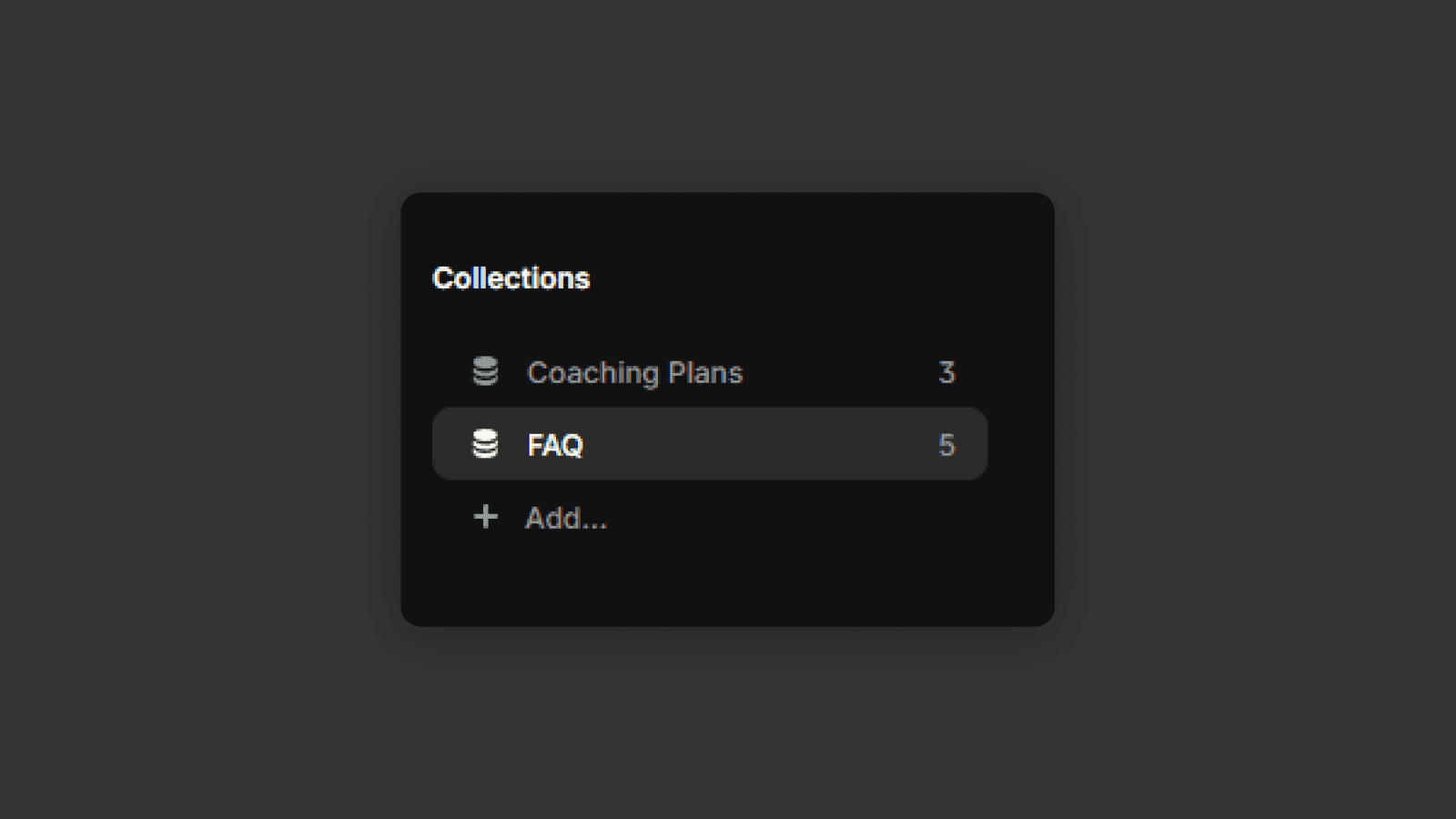
Each collection represents a group of similar items — for example, a FAQ collection, where each item contains a question and an answer, or a blog collection, where each item includes a title, date, author, content, thumbnail image, and more.
Adding new content is as simple as adding a new item to the collection.
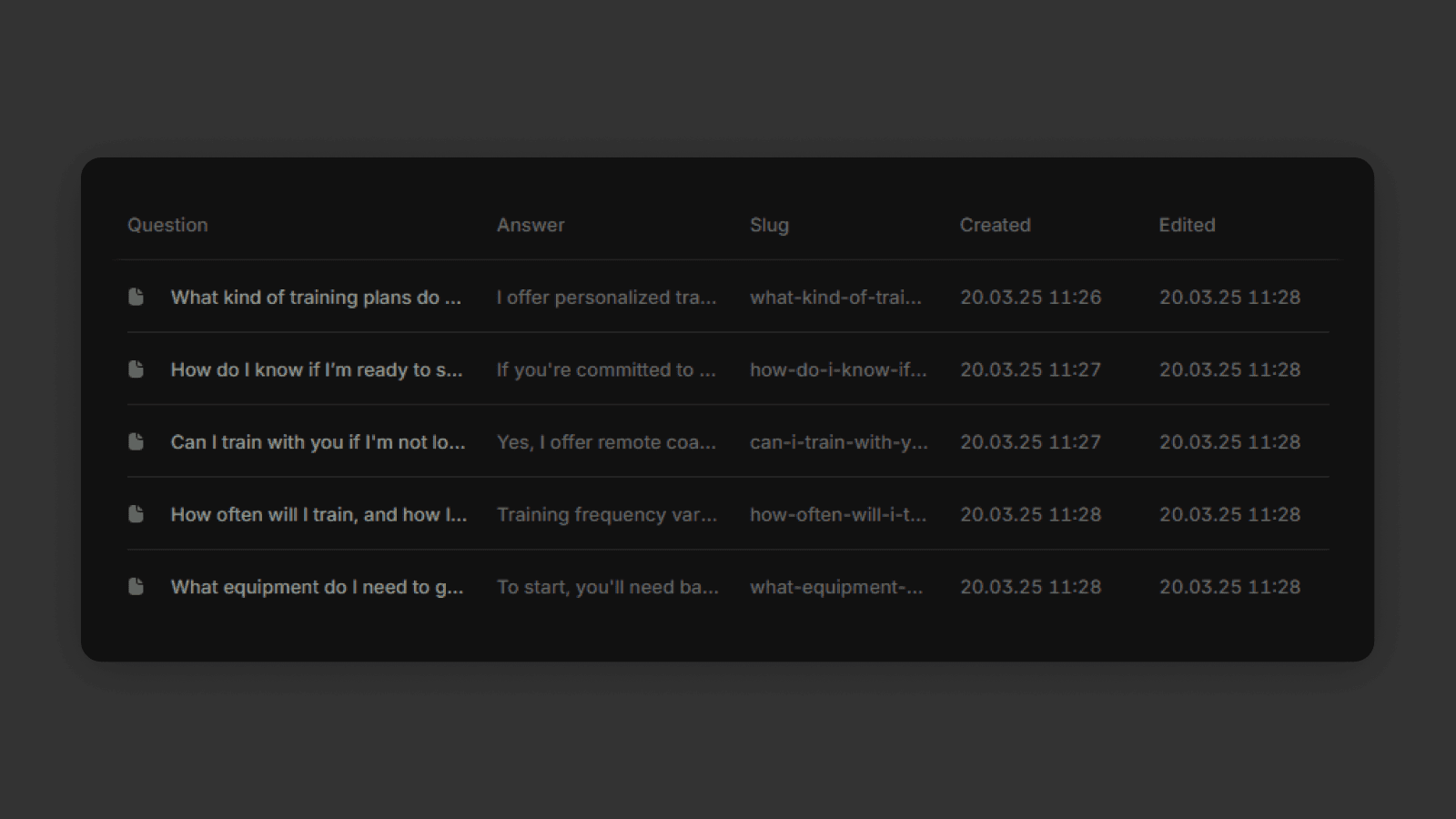
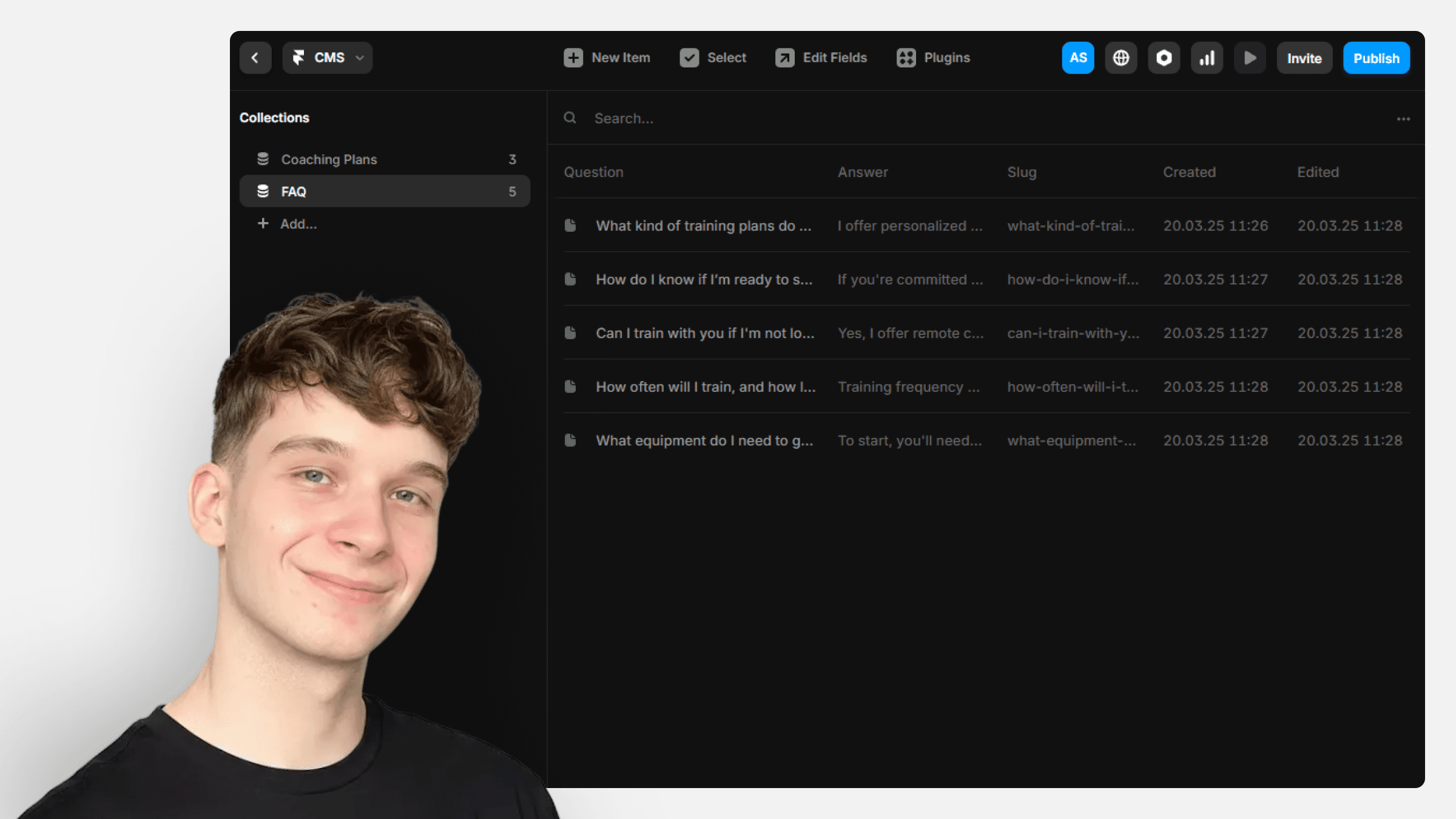
FAQ CMS collection example
If you open the CMS, you'll see all available collections in the template. Let's take the FAQ collection as an example.
Editing CMS content
When you open a collection, you can edit the content of each item directly in the CMS.
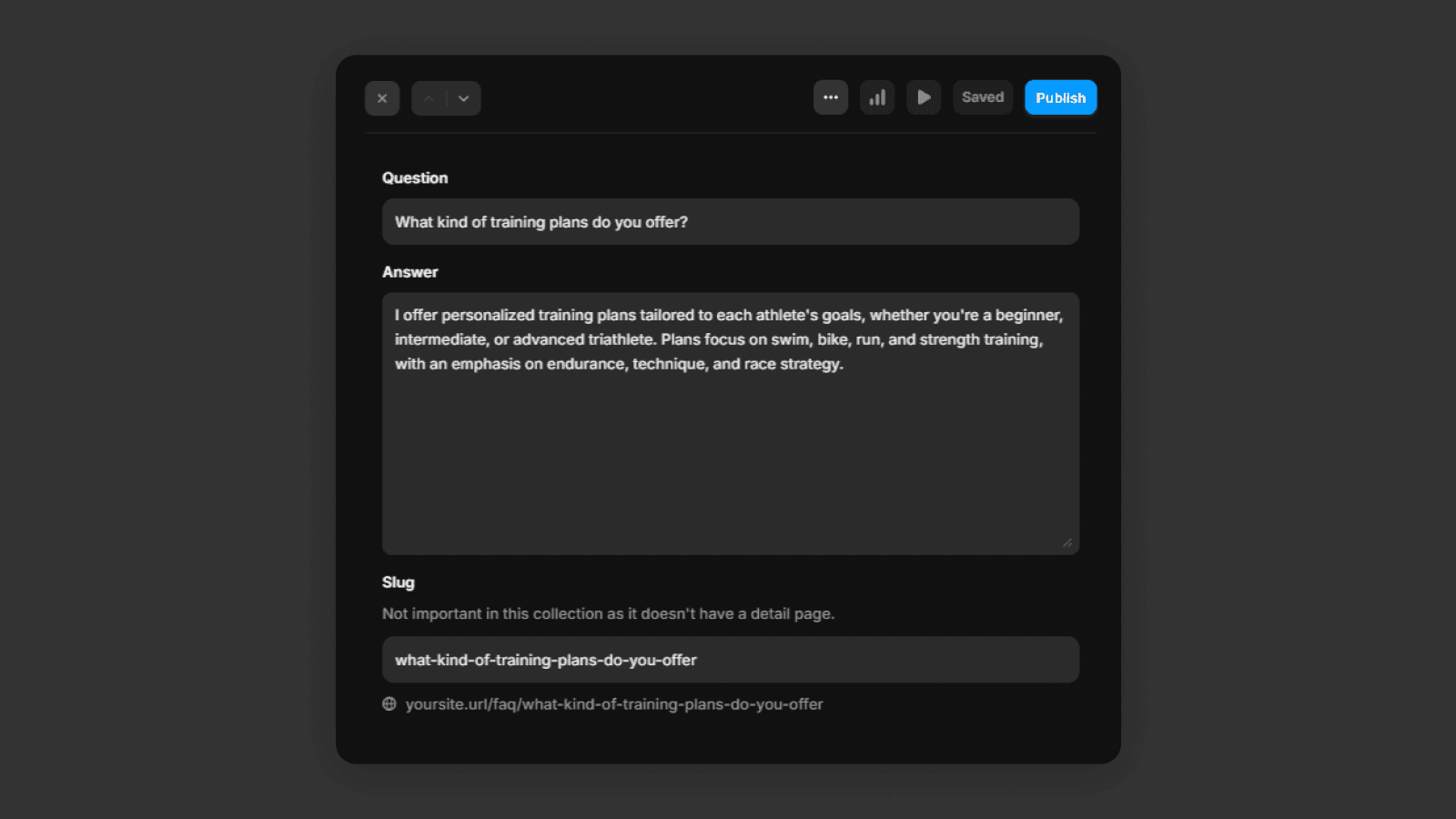
You can also
Add new items
Draft or undraft items
Edit collection fields
Remove items

After updating the CMS, the content automatically updates everywhere it's used on the site.
Displaying CMS content
To display CMS content on a page, you use a Collection element.
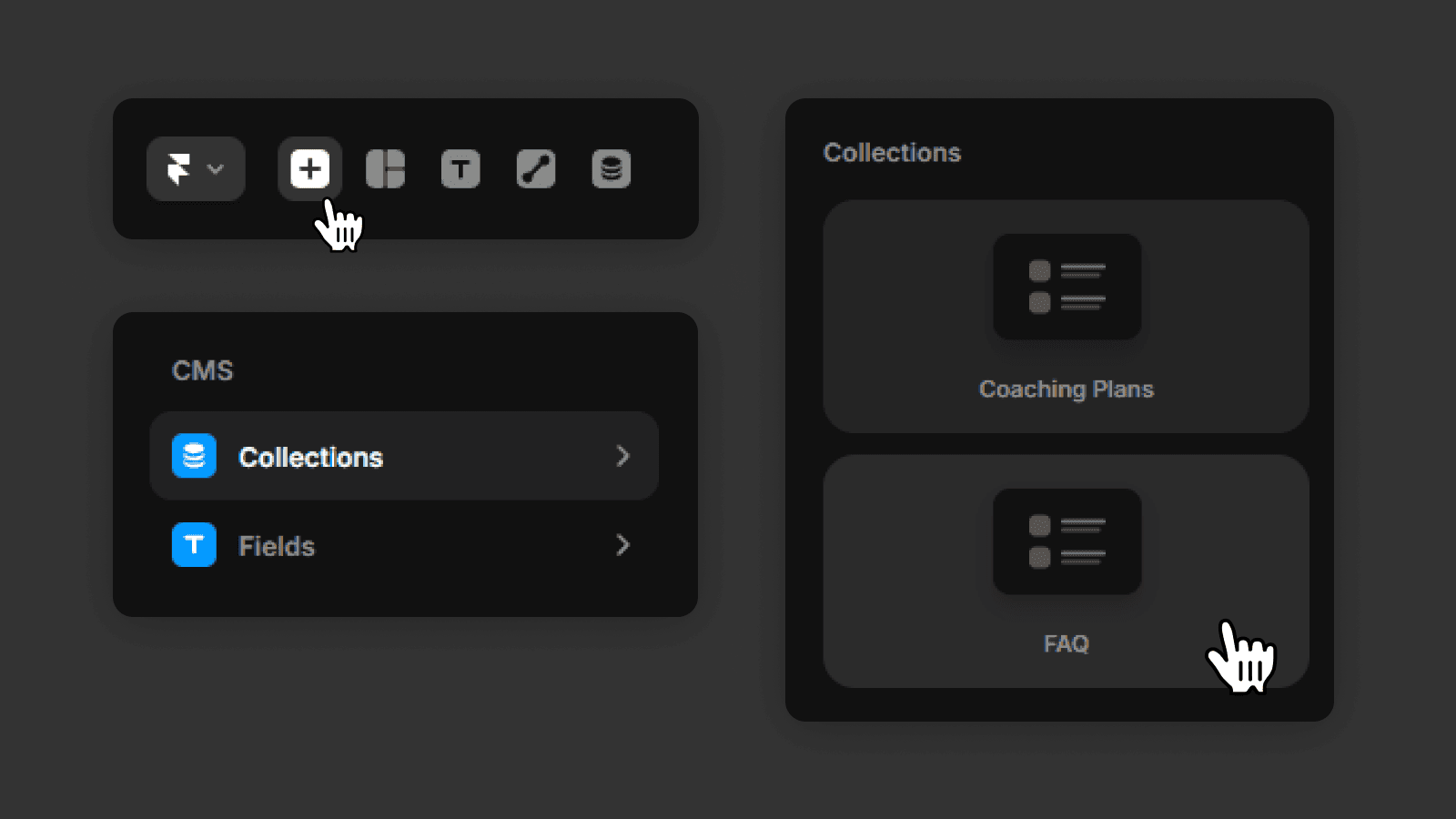
You add the CMS List to your project, connect it to a collection, and design how a single item should look. Framer then automatically repeats that layout for all items in the collection.
For example, in a FAQ section, you might use a FAQ card component inside the CMS List. You can connect component fields to CMS fields of the same type. For example, text content can use text data from the CMS item.
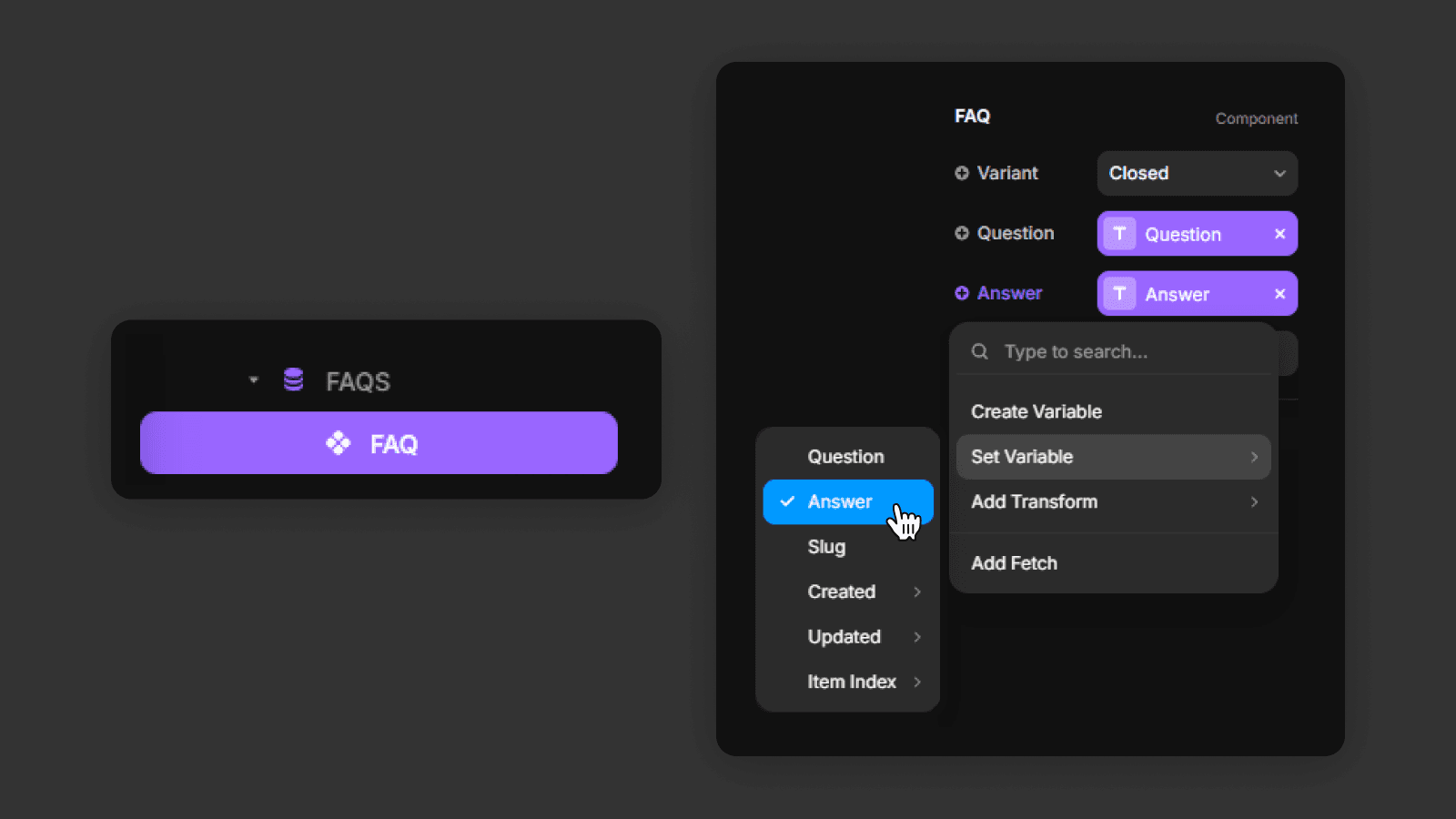
You can also control
Whether items are shown as a list or grid
How many items are shown
Sorting and filtering rules
CMS pages
Framer also lets you create CMS pages.
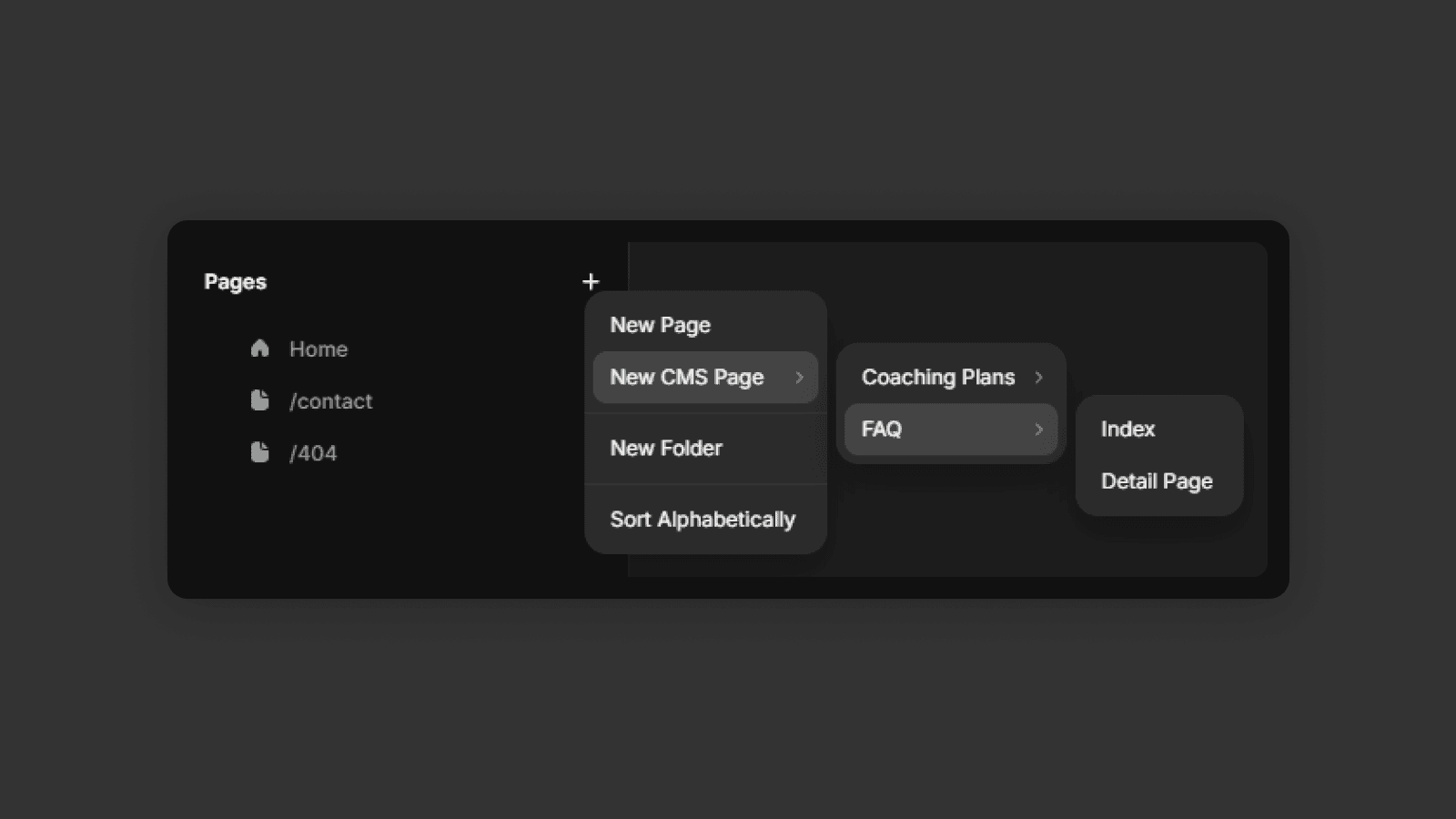
These usually include
An index page, where all items are listed
A detail page, where a single CMS item is shown in more detail.
This is commonly used for things like blog posts, projects, or legal pages.
Once set up, Framer automatically generates a page for each CMS item using the same layout, pulling the content from the CMS fields for that item.
You now know how to use the CMS to manage repeatable content, update it from one place, and display it dynamically on your website. With CMS collections and pages, you can scale your content without changing your design.
Frequently asked questions
What is the Framer CMS?
The Framer CMS (Content Management System) lets you manage repeatable content like blog posts, testimonials, projects, or FAQs. You define a collection structure once, then manage items separately without ever touching the layout.
How do I add a new item to a Framer CMS collection?
Open the CMS panel in Framer, select the relevant collection, and click "Add item." Fill in the fields — title, content, images, and more. The new item will automatically appear on all pages connected to that collection.
What is a CMS collection page in Framer?
A CMS collection page is a detail page automatically generated for each CMS item. For example, a Blog collection can have an index page listing all posts and a detail page for each individual post — both built once and reused.
How do I display CMS content on a Framer page?
Add a Collection List element to your page and connect it to the CMS collection. Design how a single item should look, and Framer repeats that layout for all items. You can also control sorting, filtering, and how many items are shown. If you're also collecting user data, pair your CMS with a Framer form.